
EasyNet Interactive
  • 0 Shopping Cart
  • +603-8800 6603
EasyNet Interactive
  • Home
  • Store
    • Browse All
    • Shared Hosting
    • E-mail Services
    • Register a New Domain
    • Transfer Domains to Us
  • Announcements
  • Knowledgebase
  • Contact Us
  • More
0 Shopping Cart +603-8800 6603 Login Register
  1. Portal Home
  2. Knowledgebase
  3. WordPress
  4. How to Remove a Post in WordPress

  Categories

Backup/Restore
4
CloudLinux (cPanel)
10
cPanel - Control Panel
24
Databases
11
DNS - Nameservers
6
Domain Management
10
Email
17
FTP
9
Mail Filters & SPAM
7
Mobile
11
Others
3
PayPal
7
Security
7
Softaculous
69
SSL
5
WHM
13
WordPress
3
WordPress
17

  Categories

  Tag Cloud

SSL

  Support

My Support Tickets
Announcements
Knowledgebase
Downloads
Network Status
Open Ticket

How to Remove a Post in WordPress Print

  • 0

You can remove the published or draft post in WordPress.


1. Log in to the WordPress dashboard.


2. From the Dashboard menu, go to Posts and click on All Posts.
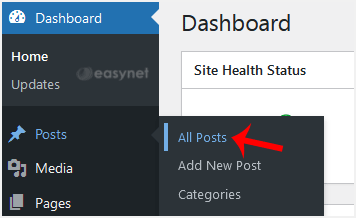
wp-first-time-all-post.gif


3. Hover your mouse to the post you want to remove, and click on Trash.
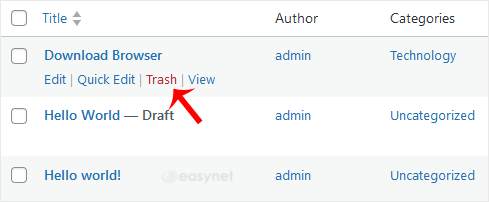
wp-removing-selected-post.gif


You will get a message that the post has been moved to Trash.


Was this answer helpful?

Related Articles

How to Remove Sample Comments and Posts From WordPress You get sample comments and posts in a fresh WordPress install. You can easily remove them in the... How to Bulk Delete Posts in WordPress It is possible to delete posts in bulk using WordPress. You can also delete selected posts in... How to Delete an Uncategorized Category in WordPress You cannot remove the Uncategorized category, but you can rename it.1. Log in to the WordPress... How to Delete Categories in WordPress If you want to remove the WordPress category, then follow this instruction:1. Log in to the... How to Delete a WordPress Theme You should remove unused themes. It is considered good practice to protect your WordPress website...
« Back

  Tag Cloud

SSL

  Support

My Support Tickets
Announcements
Knowledgebase
Downloads
Network Status
Open Ticket
  • Contact Us
  • +603-8800 6603
  • Terms of Service

Copyright © 2026 EasyNet Interactive. All Rights Reserved.


Loading...
Loading...

Generate Password

Enter a number between 12 and 64 for the password length.